AI Art Print Photography & Background Generator for Visual Artists
Aspect Ratio:
Select Background Prompt
Image Scale:
Controls how much of the canvas your image will occupy. Smaller percentages create more padding around your image.
Your content will remain private and only visible to you
Preview
Preview
Your image will appear here
Please Generate an image to display the preview
Product Background Generator
Put a product photo into a new AI-made scene, then download it for your store, listing or social post.
Overview
Upload a product photo. The tool cuts the product out, you place it on the canvas and pick one of the ready-made scenes, and the AI builds that scene around the product. Each scene is written to give the product a matching surface and a shadow underneath, so it does not look pasted on.
- •More than 100 ready-made scenes, from plain white and studio light boxes to marble, wood, nature and seasonal sets
- •15 frame shapes, including 1:1, 4:5, 9:16 and 16:9
- •Place, resize and zoom the cut-out product before you generate
- •Bulk mode: up to 10 photos in one run, each with its own scene and settings
Art print photography for shops and portfolios
Selling art prints online raises one question above all: what will it look like on my wall? Shoppers need to see the artwork accurately, understand the size, and imagine it framed. Prints are flat and often large, which makes them awkward to shoot without distortion. Photograph the print square to the camera under even light, and then place it on a background that shows it off. A clean backdrop works for the main image, and a room-style scene helps buyers picture the print on a wall.
Tips
Keep the print flat and square
Tape the print to a wall or lay it on a clean floor, and align the camera so the edges look parallel. Tilted prints appear warped and hurt the sense of precise craft.
Show the paper and edge
Include a close-up of the paper texture, margins or signature. Fine art buyers care about stock and finish, and a detail photo shows the quality that the flat front cannot.
State size options clearly
List every size in the description and show a size comparison graphic. Shoppers often underestimate print dimensions, and a visual guide prevents many returns. A sofa or desk in the image helps.
Features
Automatic cut-out
The background of your photo is removed for you, so the product is ready to place on a new scene.
Scene picker
Choose a scene from the thumbnails. Each one is a written scene the AI builds around your product, with a surface and a shadow under it.
Placement and scale
In Advanced mode, drag, resize and zoom the product on the canvas. In Easy mode, set the image scale in 10% steps.
Bulk mode
Add up to 10 photos in one run. Each card has its own scene, scale and frame shape.
How It Works
Upload your product
Click or drag a photo in. The background is removed automatically.
Place it
Pick a frame shape, then set the size and position of the product.
Pick a scene
Choose one of the ready-made scenes from the thumbnails.
Generate and download
The AI builds the scene around your product. Download the result from the preview.
Before and after examples
Two product photos before and after a new background: a cluttered desk photo turned into a clean white packshot, and a plain backdrop turned into a lifestyle scene.
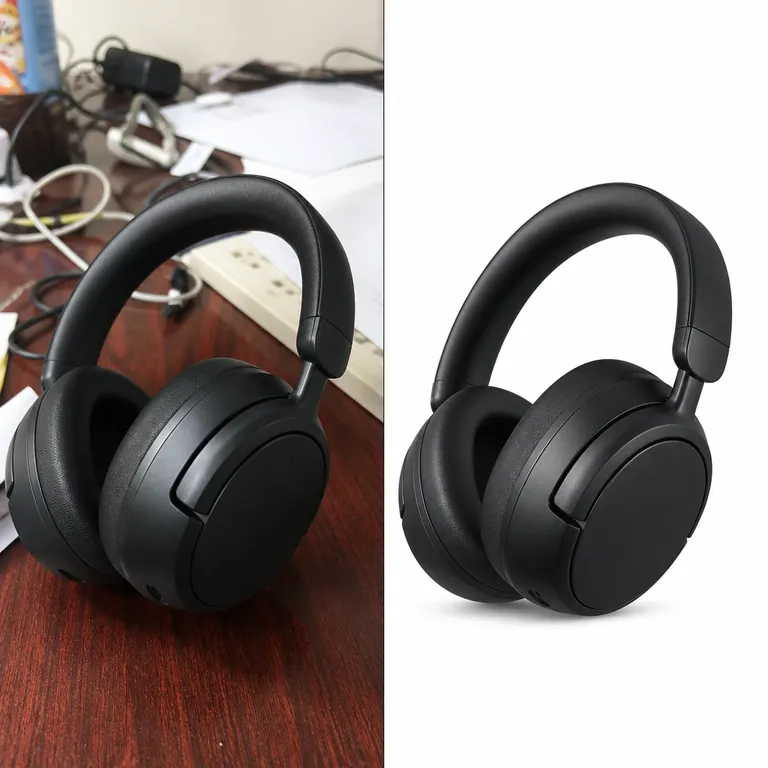
Cluttered desk photo → white ecommerce packshot
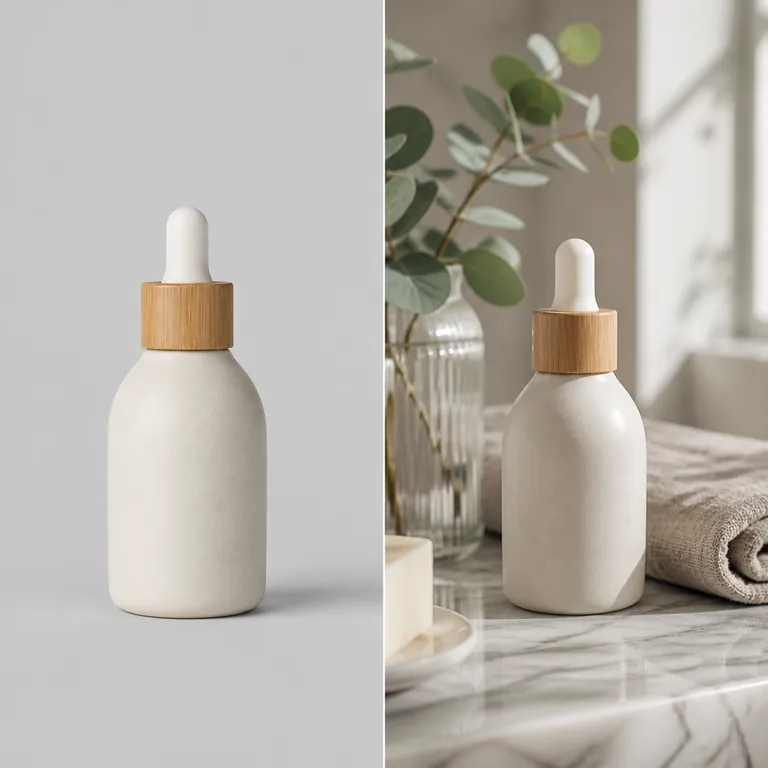
Plain backdrop → lifestyle bathroom scene
Use Cases
Store and marketplace listings
Give a set of products the same backdrop so the catalog looks consistent.
Key Benefits:
- •Plain white and light box scenes for main images
- •One scene reused across a whole range
- •No studio or reshoot needed for a new backdrop
Seasonal and campaign images
Put the same product into autumn, winter or holiday scenes for a sale or a launch.
Key Benefits:
- •Seasonal and nature scenes in the picker
- •Keep your original photo, change only the scene
- •Make several versions from one upload
Social posts
Pick the frame shape for the place you post before you generate.
Key Benefits:
- •Square and 4:5 for feeds
- •9:16 for stories and reels
- •16:9 for banners and headers
Frequently Asked Questions
More product photography guides
The main product background generator, plus guides for similar products and stores.
- Product background generator
Put any product photo into a new AI-made scene: white, studio, marble, wood, nature or seasonal.
- Musical instrument photography
Sell instruments more effectively with our AI background changer designed for music retailers.
- Craft beer photography
Market your craft beverages effectively with our AI background changer designed for breweries.
- Sports equipment photography
Market your sports products effectively with our AI background changer designed for athletic gear.
- Watch photography
Display your watches beautifully with our AI background changer designed specifically for timepieces.
- Electronic gadget photography
Increase sales of your tech products with our AI background changer designed for electronics.
- Sneaker photography
Elevate your sneaker listings with our AI background changer designed specifically for footwear.