Food Product Photography: AI Background Generator
Aspect Ratio:
Select Background Prompt
Image Scale:
Controls how much of the canvas your image will occupy. Smaller percentages create more padding around your image.
Your content will remain private and only visible to you
Preview
Preview
Your image will appear here
Please Generate an image to display the preview
Product Background Generator
Put a product photo into a new AI-made scene, then download it for your store, listing or social post.
Overview
Upload a product photo. The tool cuts the product out, you place it on the canvas and pick one of the ready-made scenes, and the AI builds that scene around the product. Each scene is written to give the product a matching surface and a shadow underneath, so it does not look pasted on.
- •More than 100 ready-made scenes, from plain white and studio light boxes to marble, wood, nature and seasonal sets
- •15 frame shapes, including 1:1, 4:5, 9:16 and 16:9
- •Place, resize and zoom the cut-out product before you generate
- •Bulk mode: up to 10 photos in one run, each with its own scene and settings
Food product photography: backgrounds that keep the food in focus
Packaged foods and fresh dishes both need different care, but the goal is the same. The viewer should look at the food, not at a kitchen counter or a crumpled tablecloth. Brands selling sauces, snacks, jars and baked goods often take photos at home or in a small workshop and end up with a busy background. Upload your best photo, choose a backdrop that suits the food, and keep the lighting natural. A good food photo makes the item look fresh, clean and ready to eat.
Tips
Shoot within minutes of preparing
Fresh food changes quickly. Sauces dull, leaves wilt and ice melts. Have the lighting and camera ready before you plate the food, then take the shots while it still looks its best.
Choose a backdrop that contrasts
A warm brown dish on a warm brown surface disappears. Pick a background lighter, darker or cooler than the food so its outline and color show clearly in a small thumbnail.
Use side light
Place a window to the side of the food so light skims the surface and brings out texture. Light from the front tends to flatten food and make it look dull.
Features
Automatic cut-out
The background of your photo is removed for you, so the product is ready to place on a new scene.
Scene picker
Choose a scene from the thumbnails. Each one is a written scene the AI builds around your product, with a surface and a shadow under it.
Placement and scale
In Advanced mode, drag, resize and zoom the product on the canvas. In Easy mode, set the image scale in 10% steps.
Bulk mode
Add up to 10 photos in one run. Each card has its own scene, scale and frame shape.
How It Works
Upload your product
Click or drag a photo in. The background is removed automatically.
Place it
Pick a frame shape, then set the size and position of the product.
Pick a scene
Choose one of the ready-made scenes from the thumbnails.
Generate and download
The AI builds the scene around your product. Download the result from the preview.
Before and after examples
Two product photos before and after a new background: a cluttered desk photo turned into a clean white packshot, and a plain backdrop turned into a lifestyle scene.
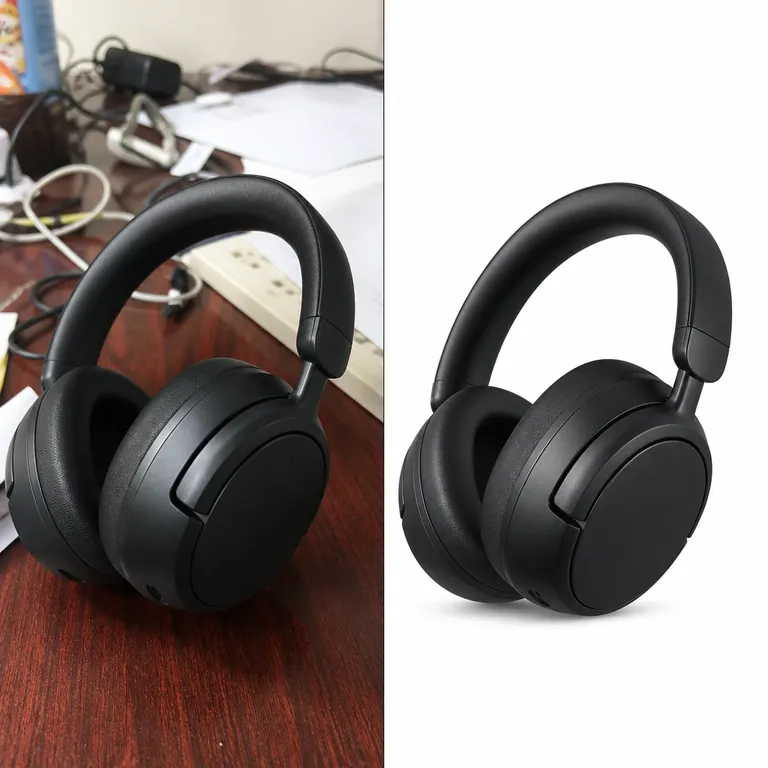
Cluttered desk photo → white ecommerce packshot
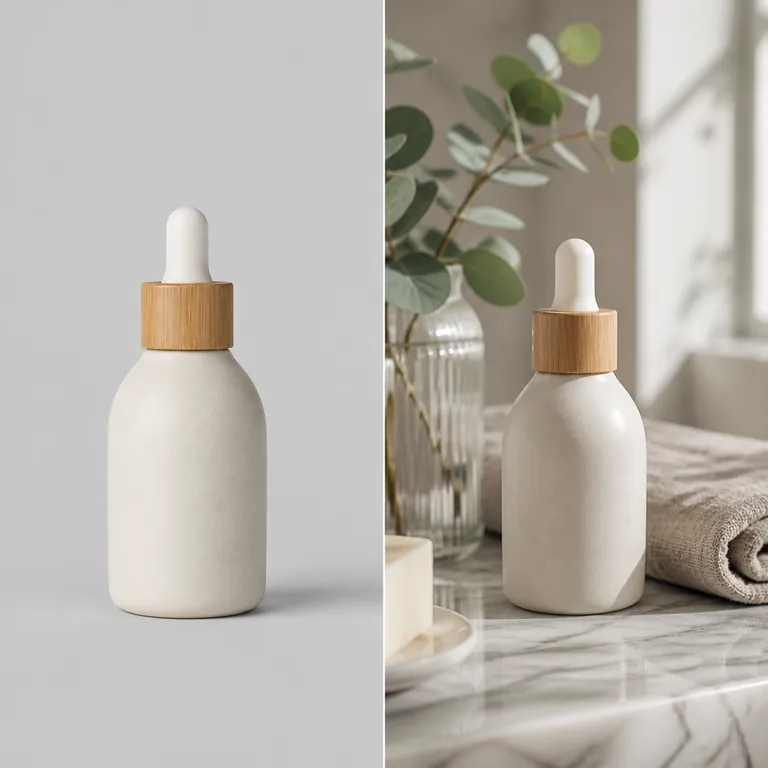
Plain backdrop → lifestyle bathroom scene
Use Cases
Store and marketplace listings
Give a set of products the same backdrop so the catalog looks consistent.
Key Benefits:
- •Plain white and light box scenes for main images
- •One scene reused across a whole range
- •No studio or reshoot needed for a new backdrop
Seasonal and campaign images
Put the same product into autumn, winter or holiday scenes for a sale or a launch.
Key Benefits:
- •Seasonal and nature scenes in the picker
- •Keep your original photo, change only the scene
- •Make several versions from one upload
Social posts
Pick the frame shape for the place you post before you generate.
Key Benefits:
- •Square and 4:5 for feeds
- •9:16 for stories and reels
- •16:9 for banners and headers
Frequently Asked Questions
More product photography guides
The main product background generator, plus guides for similar products and stores.
- Product background generator
Put any product photo into a new AI-made scene: white, studio, marble, wood, nature or seasonal.
- Cosmetics product photography
Showcase your beauty products in their best light with our AI tool that creates perfect backgrounds for cosmetics, skincare, and makeup items.
- Furniture product photography
Showcase your furniture in ideal settings with our AI tool that creates perfect contextual backgrounds for home decor and furniture items.
- Minimalist product photography
Transform your product images with clean, minimalist backgrounds that highlight your products without distractions.
- Clothing product photography
Transform your apparel photos with our specialized AI tool that creates perfect backgrounds for clothing items.
- Flat lay product photography
Transform your flat lay product images with perfect backgrounds using our AI tool.
- Jewelry product photography
Make your jewelry shine with our specialized AI tool that creates perfect backgrounds for rings, necklaces, earrings, and all jewelry items.