eCommerce Product Photography: AI Background Generator
Aspect Ratio:
Select Background Prompt
Image Scale:
Controls how much of the canvas your image will occupy. Smaller percentages create more padding around your image.
Your content will remain private and only visible to you
Preview
Preview
Your image will appear here
Please Generate an image to display the preview
Product Background Generator
Put a product photo into a new AI-made scene, then download it for your store, listing or social post.
Overview
Upload a product photo. The tool cuts the product out, you place it on the canvas and pick one of the ready-made scenes, and the AI builds that scene around the product. Each scene is written to give the product a matching surface and a shadow underneath, so it does not look pasted on.
- •More than 100 ready-made scenes, from plain white and studio light boxes to marble, wood, nature and seasonal sets
- •15 frame shapes, including 1:1, 4:5, 9:16 and 16:9
- •Place, resize and zoom the cut-out product before you generate
- •Bulk mode: up to 10 photos in one run, each with its own scene and settings
Ecommerce product photography without building a studio
Shoppers cannot touch what they buy, so the photo does the selling. In ecommerce product photography, that usually means a clean main image, a few angle shots and one or two images that show scale or use. A full studio is expensive and slow for a small shop. A more practical path is to take careful photos with window light and then replace the messy background afterwards. This page covers that second step, and how to keep the results consistent from the first product to the five hundredth.
Tips
Plan a shot list
Write the same list for every product: front, back, one side, a detail, and one scale or context shot. A repeatable list makes the catalog feel organized and speeds up your own workflow.
Use soft daylight
Place the product next to a large window and avoid direct sun. Soft light keeps shadows gentle and colors accurate, which cuts down on returns caused by items looking different from the photo.
Keep the same frame shape
Pick one aspect ratio for your product grid, such as 1:1 or 4:5, and use it everywhere. Mixed shapes make rows look ragged and force storefront themes to crop your products.
Features
Automatic cut-out
The background of your photo is removed for you, so the product is ready to place on a new scene.
Scene picker
Choose a scene from the thumbnails. Each one is a written scene the AI builds around your product, with a surface and a shadow under it.
Placement and scale
In Advanced mode, drag, resize and zoom the product on the canvas. In Easy mode, set the image scale in 10% steps.
Bulk mode
Add up to 10 photos in one run. Each card has its own scene, scale and frame shape.
How It Works
Upload your product
Click or drag a photo in. The background is removed automatically.
Place it
Pick a frame shape, then set the size and position of the product.
Pick a scene
Choose one of the ready-made scenes from the thumbnails.
Generate and download
The AI builds the scene around your product. Download the result from the preview.
Before and after examples
Two product photos before and after a new background: a cluttered desk photo turned into a clean white packshot, and a plain backdrop turned into a lifestyle scene.
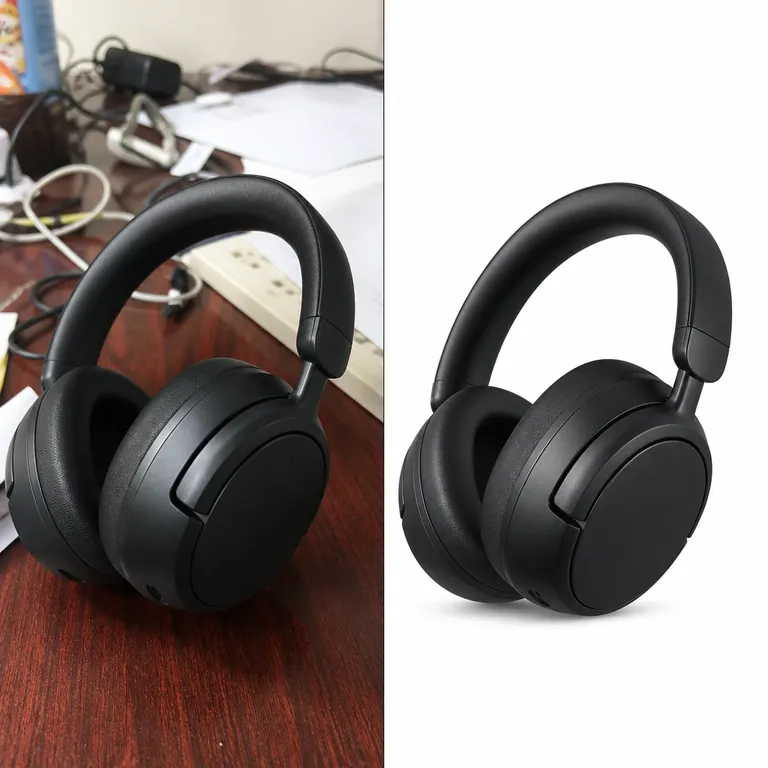
Cluttered desk photo → white ecommerce packshot
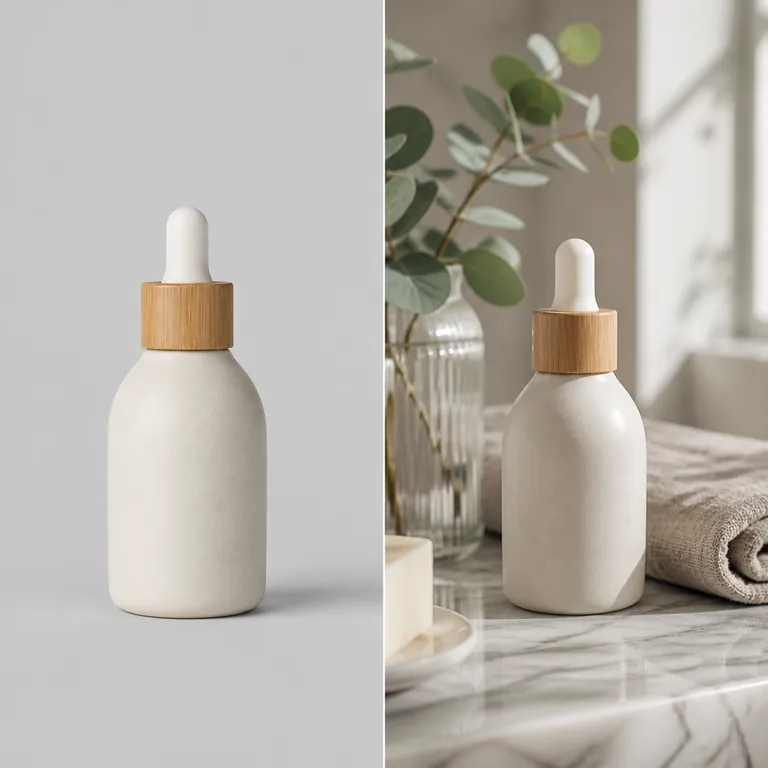
Plain backdrop → lifestyle bathroom scene
Use Cases
Store and marketplace listings
Give a set of products the same backdrop so the catalog looks consistent.
Key Benefits:
- •Plain white and light box scenes for main images
- •One scene reused across a whole range
- •No studio or reshoot needed for a new backdrop
Seasonal and campaign images
Put the same product into autumn, winter or holiday scenes for a sale or a launch.
Key Benefits:
- •Seasonal and nature scenes in the picker
- •Keep your original photo, change only the scene
- •Make several versions from one upload
Social posts
Pick the frame shape for the place you post before you generate.
Key Benefits:
- •Square and 4:5 for feeds
- •9:16 for stories and reels
- •16:9 for banners and headers
Frequently Asked Questions
More product photography guides
The main product background generator, plus guides for similar products and stores.
- Product background generator
Put any product photo into a new AI-made scene: white, studio, marble, wood, nature or seasonal.
- Jewelry product photography
Make your jewelry shine with our specialized AI tool that creates perfect backgrounds for rings, necklaces, earrings, and all jewelry items.
- Product image background changer
Our AI-powered background changer helps you create consistent, professional product images across your entire catalog.
- Clothing product photography
Transform your apparel photos with our specialized AI tool that creates perfect backgrounds for clothing items.
- Amazon product photography
Meet Amazon's strict image requirements with our AI tool that creates perfect product photos with compliant backgrounds.
- Furniture product photography
Showcase your furniture in ideal settings with our AI tool that creates perfect contextual backgrounds for home decor and furniture items.
- Pop up shop product photography
Prepare for your temporary retail space with our AI background changer designed for pop-up shops.